
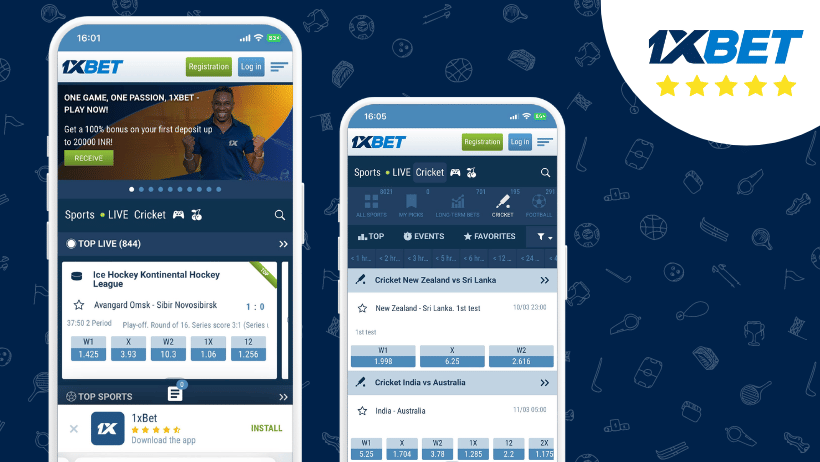
Stop opening the app. A 1xBet APK that arrived from a random download page is an unverified file, and the official reassurance that installing the application will not harm your device applies only to the file served from the 1xBet mobile page.
This is not a reason to panic. It is a reason to pause, check three things in order, and then rebuild the install from the documented path if anything looks wrong.
Why the source matters more than the app name
Every Android package carries a name, and a name is easy to copy. Anyone can host a file called 1xBet.apk. What they cannot copy is the chain of distribution that the operator controls. The official mobile page states that the Android build comes from that page, and that iOS users go through the App Store.
That single fact drives the whole decision. If your file did not come from the 1xBet mobile page, you have no documented reason to trust it, even if it installed without complaint and looks correct on screen.
Android’s own install dialog warns that files of this type may harm your phone and advises downloading only from sources you trust. That warning is not decoration. It is the same judgement you are being asked to make now.
Step one: stop using the app and protect your account
Do these actions before any inspection. They cost a few minutes and remove the worst outcomes from the table.
- Close the app and remove it from your recent apps list.
- Do not sign in again until the checks below are finished.
- If you already signed in with real credentials, change your 1xBet account password from a browser on a different, trusted device.
- Turn on any two-factor or login-confirmation option your account offers.
- Check your account statement for bets or deposits you do not recognise.
- Keep the doubtful APK file for now, but move it out of your downloads folder so you do not tap it by accident.
Changing the password matters because the app’s legitimate sign-in uses your existing account credentials. A modified build could capture exactly those credentials at the moment you type them, which is why the reset should happen somewhere the doubtful file cannot observe.
Step two: verify where the file actually came from
Now establish provenance. You are looking for one answer: did this file arrive from the 1xBet mobile page, or from somewhere else?
| What you find | What it means | What to do |
|---|---|---|
| You downloaded it from the 1xBet mobile page | Documented source | Keep it and continue using it normally |
| You downloaded it from a forum, mirror, or file-sharing page | Unofficial host | Remove it and reinstall from the official page |
| You cannot remember where it came from | Unknown provenance | Treat it as unofficial and reinstall |
| A friend sent it through a messaging app | No documented chain | Remove it and reinstall |
Reading your browser history
Open your mobile browser history and search for the download date. Look at the domain that served the file. If it is not the operator’s own mobile page, the answer is settled and you can skip the behaviour checks entirely.
One more signal: check whether the browser flagged the download or whether Android blocked it by default. A file that needed repeated permission prompts from an unfamiliar host deserves more suspicion than one that came from the page the operator publishes.
Step three: look for behaviour that does not belong
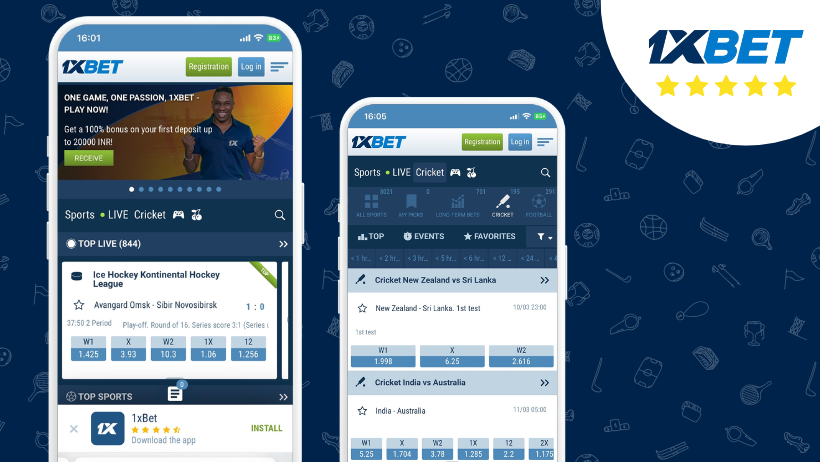
If the source is unclear but not obviously bad, behaviour becomes your second filter. Legitimate betting software does specific things: it shows odds, markets, scores, bet history, and casino sections, and it asks you to sign in with the credentials you already hold. Anything outside that pattern is a warning sign.
- Permission requests for contacts, SMS, call logs, accessibility services, or device administration.
- Pop-ups or overlays that appear when the app is closed.
- Being redirected to a browser page that asks you to re-enter your password.
- A sign-in screen that looks different from the one you normally see.
- Battery drain, heat, or data use that started only after installation.
- New apps, shortcuts, or settings you did not add yourself.
- Requests to install a second file to “finish” the setup.
Any single item on that list is enough to stop. Mobile malware frequently arrives disguised as a popular app, and it does not announce itself after installation. The reference material on mobile malware describes the same pattern of disguised packages and unwanted background activity.

What a legitimate install actually looks like
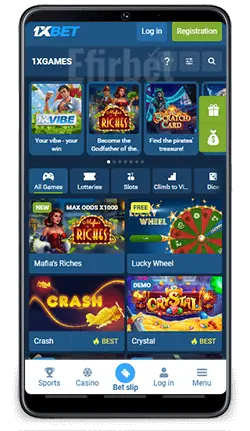
A clean copy behaves predictably. It asks for the permissions a betting app needs, it opens on a sportsbook or casino screen, and it accepts your existing 1xBet login without redirecting you anywhere unusual. Compare your experience against this table before deciding whether to keep the file.
| Signal | Expected on a clean install | Concerning |
|---|---|---|
| Sign-in | Uses your existing account credentials | Asks you to register again or re-enter card details |
| Permissions | Limited to what the app needs to run | Contacts, SMS, accessibility, device admin |
| Screen content | Odds, live events, bet history, casino | Generic pages or a browser redirect |
| Background activity | None when closed | Overlays, pop-ups, notifications you did not enable |
| Extra downloads | None | Prompts to install a second file |
Step four: remove the doubtful copy completely
Uninstalling from the home screen is not always enough, because leftover files and cached data can remain. Work through the phone’s settings rather than the launcher.
- Open Settings, then Apps, then find the entry for the betting app.
- Clear cache and storage for that entry first.
- Tap Uninstall and confirm.
- Return to Settings and check the list again to confirm the entry is gone.
- Delete the APK file from your downloads folder and empty the browser’s download list.
- Restart the phone so any running process tied to the file stops.
- Check the home screen and app drawer for stray shortcuts and remove them.
If the uninstall option is greyed out or missing, that is itself a finding. Legitimate consumer apps do not prevent removal. In that case, use your device’s built-in security or device-care tool to scan, and consider a factory reset if the app still refuses to leave.
Step five: install from the official 1xBet mobile page
Now rebuild the install from the documented source. The official page lists six steps for Android, and the sequence is straightforward once you follow it in order.
- Open the 1xBet mobile page in your phone’s browser and tap Download.
- Open Settings and go to the “Install unknown apps” section.
- Allow installation from unknown sources for your browser.
- Wait for the download to finish, then select the downloaded 1xBet.apk file.
- Tap Install and confirm the prompt.
- Wait for the app to install, then tap Open.
Two details are worth noting. First, Android will show its own warning dialog before the download; that prompt is normal for any file of this type and appears because the app is not distributed through Google Play.
Before you sign back in
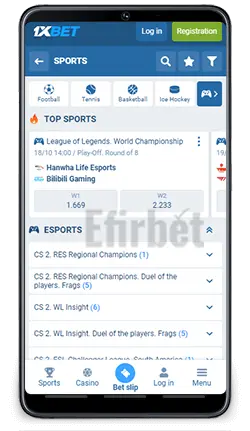
Confirm the app opens on a screen that matches what you expect from a sportsbook, and check that your account credentials work without a redirect. Once you are satisfied, you can continue as normal, whether you are browsing markets or planning your next deposit.
When you are ready to place a bet through your 1xBet account, sign in only inside the freshly installed app and confirm the padlock and domain shown in any in-app browser window. If a link ever pushes you to a page asking for card details outside the app, close it. A cautious habit before each 1xbet free download and reinstall is cheaper than cleaning up after a bad file.
Keeping the install trustworthy afterwards
The work does not end at installation. Keep the app current through the same official page rather than third-party update sites, because an update served from an unofficial host reintroduces the exact problem you just solved. Turn on your phone’s built-in malware scanning if it has one, and review installed apps occasionally for anything you do not recognise.
Store the official mobile page as a bookmark so future downloads bypass search results entirely. That single habit removes most of the risk, because the majority of doubtful copies reach phones through links that look plausible at a glance.
If you are still unsure
Uncertainty is an acceptable answer here. If you cannot establish where the file came from and nothing on the behaviour list reassures you, delete it and use the mobile website in your browser instead. You lose the app, not your account, and you can always install the official build later when you are ready.
Quick checklist before you reinstall
- I have changed my 1xBet account password from a different trusted device.
- I have confirmed the doubtful file did not come from the official mobile page.
- I have uninstalled the app and cleared its cached data.
- I have deleted the leftover APK file and emptied the download list.
- I have bookmarked the official 1xBet mobile page for a clean download.
- I know which browser will hold the unknown-sources permission, and I plan to revoke it after installing.
FAQ
Can a doubtful APK steal my 1xBet login even after I uninstall it?
Credentials captured before removal stay captured, which is why the password reset should happen from a different trusted device and before you reinstall anything. Changing the password invalidates the stolen pair.
What if the app will not uninstall from my phone?
Try Settings, then Apps, then clear storage before uninstalling. If the option stays unavailable, run your device’s security scan and consider a factory reset, because consumer apps should always allow removal.
Do I need to remove the “unknown sources” permission after installing?
No, but you can. The permission is attached to your browser, so revoking it in the same settings screen simply means future files need approval again. It does not affect the installed app.
My file installed fine and shows no odd behaviour. Is that enough?
Not on its own. A clean install and normal-looking screens prove nothing about the file’s origin, so an unknown source still justifies a fresh install from the official page.
Can I keep using the browser version instead of reinstalling?
Yes. The mobile site covers the same account and activities, so it works as a permanent alternative if you would rather not grant unknown-source permission again.